Add album art through Windows Media Player - the correct way
I started adding album information to my music collection using Windows Media Player 10 (but it is virtually the same in 11). Several times I ran into a problem where album art was overwritten, until I figured out why.
While playing the album, right-click on any of the tracks and select Find Album Info.
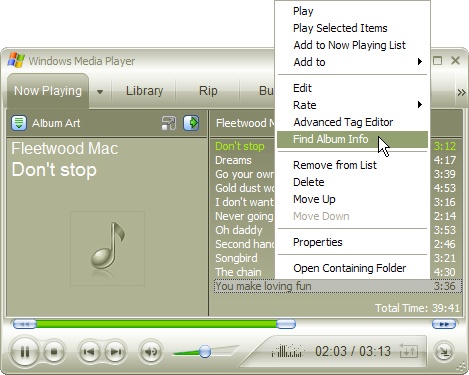
This takes you to another screen where Media Player tried to match the album.
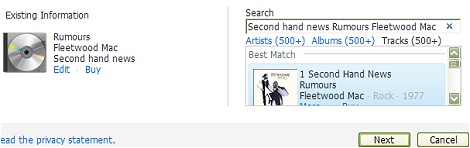
Any existing information for the album, including the album cover, is displayed under existing information. Check whether a match was found on the right hand side. In the picture, the Best match is indeed correct, so select it by clicking on it and click on Next.
If the information is not correct, try to scroll down to see if a closer match is listed. If so, select it. If no match was found, you have really no alternative but to enter the meta data manually. Album art can then also best be added manually, more on this later.
After you clicked Next, the album information is awaiting confirmation. If it is correct, simply click Finish to return to the main Media Payer screen. Your album art will now be displayed and all other album information will have been updated.
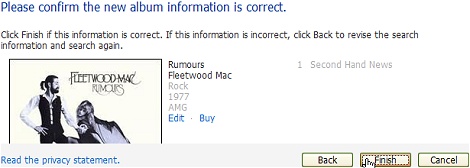
Now Windows Media Player will display the album art:

If you look in the folder where the music resides, you will now notice four files. In the above case these were:
AlbumArt_{4AB8827D-EA0E-4A2E-B8B2-77BE178BEEBA}_Large.jpg

AlbumArt_{4AB8827D-EA0E-4A2E-B8B2-77BE178BEEBA}_Small.jpg

AlbumArtSmall.jpg

Folder.jpg
If you would manually have edited the album information and then select album art from the list, the album ID would consist of {00000000-0000-0000-0000-000000000000} and that will be a problem. If you have more than one album like that your album art for all those albums can be overwritten. If you cannot find album information, the best way to add album art is by using the advanced tag editor.
While in the main screen of Media Player, select all the songs of the album by clicking on the first and — while holding shift — the last. Right-click and select the Advanced Tag Editor. Then under the Pictures tab, you can manually add the cover picture. You will have to find that yourself.

A good source for album art is http://mog.com